
Quick answer: a CRM Excel template that holds up is four tabs, not one long list: Contacts, Deals, Activities and a Lists tab that feeds every dropdown and holds the pipeline summary. Add ten formulas (deals per stage, pipeline value, an overdue follow-up flag built on TODAY, duplicates, last contact) and four colour rules, and you have a working CRM spreadsheet in Excel or Google Sheets in about 20 minutes.
Key takeaways (October 2026)
- The layout below uses 4 tabs and 36 columns on the three data tabs, of which 5 are formulas you never type into.
- 10 copy-ready formulas run the template; all of them work in current Microsoft Excel and in Google Sheets.
- The build takes about 20 minutes in five steps, and the upkeep is one 30-minute review a week.
- Google's own help page lists 22 languages, English included, for function names in Sheets, and Excel in German, French, Spanish and other languages does the same, so check the names in your version.
- There are 5 signs that a spreadsheet CRM has started to cost you money; two of them at once is the usual moment to move.
When is a CRM spreadsheet enough?
A CRM spreadsheet is enough while one to three people share it, the open deals fit on a single screen, and every conversation can be logged by hand the same day. In that range a well-built sheet beats a half-used CRM, because everyone already knows how to open it and nothing needs installing.
The trouble with most "crm excel template" downloads is that they are one tab with twenty columns. Contacts, deals and notes all sit on the same row, so a customer with two deals becomes two rows, a phone number gets typed twice, and the notes column turns into a diary nobody can filter. The fix is the same structure a real CRM uses, just in cells: one tab per kind of record, linked by short IDs. Then COUNTIFS and SUMIFS can answer "how many deals are in Proposal sent?" without anyone adding numbers by hand.
If you are still deciding whether you need a CRM at all, our guide to CRM for small business covers that question.
The 4-tab layout: Contacts, Deals, Activities, Lists
The template splits your data into four tabs so that each row means one thing: one person, one opportunity, one touch, or one setting. IDs connect them: every contact gets a code like C-001, every deal a code like D-001, and every activity points at both. Names are for reading, IDs are for formulas.
| Tab | One row means | Columns | Who updates it |
|---|---|---|---|
| Contacts | One person or company you deal with | 14 (3 formulas) | Whoever adds a new lead |
| Deals | One opportunity with a value and a stage | 14 (2 formulas) | The deal owner, after every change |
| Activities | One call, email, chat, meeting or note | 8 | Whoever had the conversation |
| Lists | Stages, owners, sources, types, reasons, plus the summary | 5 lists, 2 formula columns and 3 summary cells | The account owner, rarely |
Two habits make the structure work. First, never merge cells or leave blank rows inside the data, because filters and sorting stop at the gap. Second, in Excel, turn each data range into a table (select it, then Insert, then Table, or Ctrl+T) so new rows pick up the formulas and formatting automatically. In Google Sheets, plain ranges work fine.
Contacts tab: every column and its purpose
The Contacts tab is the customer database: one row per person, with the details you need to reach them and three formula columns that tell you who has gone quiet, who has open business and which rows are duplicates. Keep it lean; anything about a specific deal belongs on the Deals tab.
| Column | Header | Sample value | Purpose |
|---|---|---|---|
| A | Contact ID | C-001 | The key every other tab uses |
| B | Name | Client A | Who you are talking to |
| C | Company | Company A | Groups several people from one customer |
| D | client.a@example.com | Main written channel; also the duplicate check | |
| E | Phone | +00 000 000 000 | Calls and WhatsApp |
| F | Source | Referral (dropdown) | Where the lead came from, so you know what works |
| G | Owner | Owner A (dropdown) | One name, one person responsible |
| H | Status | Lead, Customer or Past customer (dropdown) | Separates prospects from people who have bought |
| I | Created | 2026-10-01 | When they entered your world |
| J | Last contacted | formula | Latest date in Activities for this contact |
| K | Open deals | formula | How many live opportunities they have |
| L | Duplicate? | formula | Flags an email that appears twice |
| M | Consent | Yes or No (dropdown) | Whether they agreed to marketing messages |
| N | Notes | Prefers mornings | Short, lasting facts only, not a diary |
The Consent column matters more than it looks: it is the only record of who agreed to hear from you, and the column people most often forget to bring across when they switch tools.
Deals tab: the sales pipeline in 14 columns
The Deals tab is your sales pipeline excel template: one row per opportunity, a stage chosen from a dropdown, a value, and a dated next step. The follow-up date column is the most important cell on the row, because the overdue flag and the weekly review both run on it.
| Column | Header | Sample value | Purpose |
|---|---|---|---|
| A | Deal ID | D-001 | Unique key |
| B | Contact ID | C-001 | Links the deal to a person |
| C | Deal name | Client A, annual plan | What is being sold, in a few words |
| D | Owner | Owner A (dropdown) | Who moves it forward |
| E | Stage | Proposal sent (dropdown) | Where it sits in the pipeline |
| F | Value | 2,400 | Expected amount in your currency |
| G | Stage since | 2026-10-14 | Date it entered the current stage |
| H | Next step | Call to confirm scope | The single next action, as a verb |
| I | Follow-up date | 2026-10-21 | When that action is due |
| J | Overdue | formula | Shows OVERDUE when the date has passed |
| K | Days in stage | formula | How long the deal has been stuck |
| L | Expected close | 2026-11-15 | Your best guess at the decision date |
| M | Lost reason | Price (dropdown) | Filled only when the stage is Lost |
| N | Source | Website (dropdown) | Copied from the contact, so you can report on deals by source |
One rule for this tab: every open deal has a next step and a follow-up date. A deal without both is not in the pipeline, it is in your memory.
Activities tab: a log that answers "when did we last talk?"
The Activities tab is a running log with one row per touch: a call, an email, a WhatsApp chat, a meeting or an internal note. It is the tab people skip, and it is also the one that makes the "last contacted" column and an honest weekly review possible.
| Column | Header | Sample value | Purpose |
|---|---|---|---|
| A | Date | 2026-10-20 | When it happened |
| B | Contact ID | C-001 | Who it was with |
| C | Deal ID | D-001 | Which opportunity, if any |
| D | Type | Call (dropdown) | Call, Email, WhatsApp, Meeting or Note |
| E | Owner | Owner A (dropdown) | Who had the conversation |
| F | Summary | Asked for a revised quote | One line, written for a colleague |
| G | Outcome | Positive (dropdown) | Positive, Neutral, Negative or No reply |
| H | Next step agreed | Send quote by Friday | Copied into the deal's Next step |
Add rows at the bottom and never edit old ones; if a summary was wrong, add a row that corrects it, so the tab stays a true history.
Lists tab: dropdowns for stages, owners and sources
The Lists tab holds every value a dropdown can offer, plus the pipeline summary. Keeping the options in one place means you change a stage name once, and every dropdown in the workbook follows. It also stops the classic spreadsheet problem of "Proposal", "proposal sent" and "Prop. sent" being three different stages.
Lay it out like this, one list per column, header in row 1:
- A: Stage with New, Contacted, Qualified, Proposal sent, Negotiation, Won, Lost (rows 2 to 8).
- B and C: formula columns for deals per stage and value per stage (see the formulas below).
- D: Owner with Owner A, Owner B, Owner C.
- E: Source with Referral, Website, Social media, Ads, Event, Other.
- F: Activity type with Call, Email, WhatsApp, Meeting, Note.
- G: Lost reason with Price, Timing, Chose another provider, No reply, Not a fit.
- I1 to I3: three summary cells for open pipeline, overdue follow-ups and win rate.
Excel: select the Stage column on the Deals tab (E2 down), choose Data, then Data Validation, set Allow to List, and type =Lists!$A$2:$A$8 as the source. Repeat for Owner, Source, Type and Lost reason with their own ranges. Short fixed lists such as Status, Consent and Outcome can be typed straight into the Source box, separated by commas. On the Error Alert tab of the same window, keep "Stop" selected so nobody can type a stage that is not on the list.
Google Sheets: select the range, choose Data, then Data validation, then Add rule, set the criteria to "Dropdown (from a range)" and enter Lists!A2:A8. Under Advanced options, choose "Reject the input" for the same protection.
The 10 formulas, in words and copy-ready
Ten formulas turn the four tabs into a CRM: four on the Lists tab summarise the pipeline, two on the Deals tab flag overdue and stuck deals, three on the Contacts tab track contact history and duplicates, and one counts overdue follow-ups. Paste each into row 2 of its column and fill down; whole-column references keep working as you add rows.
1. Deals per stage (Lists, B2). Count the rows on Deals whose stage matches the stage written in A2.
=COUNTIFS(Deals!$E:$E, $A2)
2. Pipeline value per stage (Lists, C2). Add up the Value column for every deal in that stage.
=SUMIFS(Deals!$F:$F, Deals!$E:$E, $A2)
If you want a weighted pipeline, add a probability column next to it with your own estimate for each stage and multiply value by probability. Treat those percentages as your guesses, revisited every quarter, not as facts.
3. Total open pipeline (Lists, I1). Add up every deal that is neither won nor lost.
=SUMIFS(Deals!$F:$F, Deals!$E:$E, "<>Won", Deals!$E:$E, "<>Lost")
4. Win rate (Lists, I3). Won deals divided by all closed deals. It shows a division error until you have closed your first deal, which is correct.
=COUNTIF(Deals!$E:$E, "Won")/(COUNTIF(Deals!$E:$E, "Won")+COUNTIF(Deals!$E:$E, "Lost"))
5. Overdue follow-up flag (Deals, J2). If the follow-up date is filled in, is earlier than today, and the deal is still open, show OVERDUE; otherwise leave the cell empty. Because TODAY recalculates every time the file opens, the flag updates daily without anyone touching it.
=IF(AND(I2<>"", I2<TODAY(), E2<>"Won", E2<>"Lost"), "OVERDUE", "")
6. Days in stage (Deals, K2). Today's date minus the date the deal entered its current stage, so you can see what is stuck. Format the column as a number, not a date.
=IF(G2="", "", TODAY()-G2)
7. Overdue follow-ups, total (Lists, I2). Count how many deals carry the OVERDUE flag. This is the first number you look at on Monday.
=COUNTIF(Deals!$J:$J, "OVERDUE")
8. Open deals per contact (Contacts, K2). Count deals for this contact ID that are not won or lost.
=COUNTIFS(Deals!$B:$B, A2, Deals!$E:$E, "<>Won", Deals!$E:$E, "<>Lost")
9. Last contacted (Contacts, J2). The most recent activity date for this contact, or an empty cell if there is none yet. Format the column as a date.
=IF(COUNTIF(Activities!$B:$B, A2)=0, "", MAXIFS(Activities!$A:$A, Activities!$B:$B, A2))
10. Duplicate check (Contacts, L2). If the email is filled in and appears more than once in the column, show DUPLICATE.
=IF(D2="", "", IF(COUNTIF($D:$D, D2)>1, "DUPLICATE", ""))
Formulas in your language. These are written with English function names and commas between arguments. If your Excel runs in another language, it expects translated names, and where the decimal mark is a comma it also expects semicolons between arguments. A workbook built in one language converts automatically when opened in another; only formulas you type need the local names. Google Sheets shows translated names only if you clear "Always use English function names" under File, then Settings. MAXIFS needs Excel 2019 or later, or Microsoft 365, and it works in Google Sheets.
Want to see it in action?
See Zoye catch a new lead, answer on WhatsApp and set up the follow-up, all from one message.
See How It WorksConditional formatting: four rules that make problems visible
Conditional formatting turns the formula columns into colour, so problems jump out without filtering. Four rules are enough: red for overdue follow-ups, amber for stuck deals, green for won deals and orange for duplicate contacts. More colours than that and the sheet stops telling you anything.
Apply each rule to the whole data range (for example A2:N1000 on Deals), using a formula rule. In Excel, choose Home, then Conditional Formatting, then New Rule, then "Use a formula to determine which cells to format". In Google Sheets, choose Format, then Conditional formatting, then "Custom formula is".
- Overdue, red fill (Deals):
=$J2="OVERDUE" - Stuck for more than 14 days, amber fill (Deals):
=AND($K2<>"", $K2>14, $E2<>"Won", $E2<>"Lost") - Won, green fill (Deals):
=$E2="Won" - Duplicate email, orange fill (Contacts):
=$L2="DUPLICATE"
The dollar sign before the column letter is the part people miss. It locks the column, so the whole row turns red, not just one cell. The 14-day threshold is a starting point: set it to roughly the time a healthy deal usually spends in one stage in your business.
Two finishing touches: freeze the header row (View, then Freeze Panes in Excel; View, then Freeze in Google Sheets) and add a filter to each tab, so anyone can show only their own deals with one click.
How to build it in 20 minutes
You can build the whole template in about 20 minutes in this order: structure, lists, formulas, colour. Writing formulas before the Lists tab exists is the usual reason a first attempt breaks.
- Minutes 0 to 4: tabs and headers. Create the four tabs with exactly these names: Contacts, Deals, Activities, Lists. Type the headers from the tables above into row 1. Bold them and freeze the row.
- Minutes 4 to 8: the Lists tab. Type the stages, owners, sources, activity types and lost reasons into their columns.
- Minutes 8 to 12: dropdowns. Add data validation to Stage, Owner, Source, Type, Outcome, Status, Consent and Lost reason, pointing each at its list.
- Minutes 12 to 17: formulas. Paste the ten formulas, fill them down, and set number and date formats on the formula columns.
- Minutes 17 to 20: colour and test. Add the four formatting rules, then type three sample rows (Client A, Client B, Client C) with one deal each and one follow-up date in the past. If one row turns red and the summary shows one overdue follow-up, the template works. Delete the sample rows, and you are ready.
If you keep the tab names in English, the formulas paste unchanged. Renaming a tab later is safe: Excel and Google Sheets update formula references to the new name. Renaming a stage is the one change to make carefully, because the words "Won" and "Lost" inside the formulas must match the dropdown values exactly.
The weekly review: 30 minutes that keep the sheet honest
A spreadsheet CRM is only as current as the last time someone looked at it, so give it a fixed slot: 30 minutes, same day each week, ideally Monday morning. The review follows the formulas, from what is overdue to what the pipeline is worth.
- Overdue first (10 minutes). Filter Deals on the OVERDUE flag. For each row, either do the follow-up now, set a new date with a reason in Next step, or move the deal to Lost with a lost reason. Aim to finish with the overdue count at zero.
- Stuck deals (5 minutes). Sort by Days in stage, largest first. Anything amber needs a decision: a different next step, a different owner, or an honest Lost.
- Quiet customers (5 minutes). Sort Contacts by Last contacted, oldest first, and filter Status to Customer. Pick three people to check in with this week and log a planned activity for each.
- Hygiene (5 minutes). Filter the Duplicate column, merge any duplicates, and check that every open deal has a next step and a date.
- Numbers (5 minutes). Note the open pipeline and the win rate, with the date, at the bottom of the Lists tab. After a few weeks you have a trend without a single chart.
See what Zoye can do for you
CRM, deals, tasks and your Instagram, Facebook and WhatsApp automations in one workspace. Just ask Zoye and it sets any of it up for you.
Explore FeaturesFive signs you have outgrown your spreadsheet CRM
You have outgrown a spreadsheet CRM when keeping the sheet up to date takes more time than the sheet saves, or when it starts losing deals it was supposed to protect. These five signs are the ones that show up first. The costs below are worked examples with round numbers; replace them with your own.
| Sign | What you notice | What it costs (illustrative) |
|---|---|---|
| 1. Conflicting copies | "Clients final v2" on one laptop, a different version in the shared drive | 1 hour a week reconciling is about 50 hours a year of admin |
| 2. The overdue list never clears | The Monday count goes up week after week | With 20 open deals averaging 1,000 in your currency, 2 forgotten follow-ups a month leave 2,000 of pipeline to chance |
| 3. Conversations never reach the sheet | Deals move on WhatsApp and email; the Activities tab is weeks behind | Every "where were we?" call restarts a sale and makes you look disorganised |
| 4. Reporting takes longer than selling | The weekly numbers take more than an hour of copying and checking | 1 extra hour a week is roughly 6 working days a year taken from customers |
| 5. No control over who sees what | Anyone with the link sees every customer, price and note | One forwarded file can expose your entire customer list |
1. Conflicting copies. The moment someone downloads the file or emails it to a colleague, there are two truths. Online editing in Microsoft 365 or Google Sheets solves the copy problem, but not the habit.
2. The overdue list never clears. A spreadsheet can colour a cell red, but it cannot remind you on your phone at the right moment or chase the customer for you. When every review ends with overdue rows, the sheet has become a list of guilt.
3. Conversations never reach the sheet. The useful detail is said in a chat, and copying it into a row is the step that gets dropped on a busy day. Our piece on client records looks at why a hand-kept record drifts from reality.
4. Reporting takes longer than selling. The formulas give you counts and sums, but "deals by source this quarter compared with last" means pivot tables, and that hour comes out of customer time.
5. No control over who sees what. Sharing works at file level. You can protect ranges, but you cannot easily let a new team member see only their own customers, and with a growing team that is a privacy question.
One sign is a reason to tighten the routine. Two or more at once usually mean the spreadsheet is now costing more than it saves.
How to move from a spreadsheet to Zoye without losing anything
Moving from a spreadsheet to Zoye is an import, not a rebuild: you clean the file, bring it in, and your contacts, deals and stages arrive in a workspace where follow-ups become tasks and the assistant keeps records current from your chats. The four-tab layout above was designed so that this step is quick.
Before the import (15 minutes). Merge what the Duplicate column finds, check that each tab has one header row and no merged cells, and fill in Owner and Stage on every open deal. Then export each tab as CSV, or keep the workbook as it is.
The import. Zoye imports spreadsheets today, without creating duplicates. Anything that does not fit a standard field, such as Consent or Lost reason, can live in a custom field: ask the assistant to add it. Give the pipeline the same stage names as your Stage list, so every deal lands where it was. If your data is somewhere less tidy, send the assistant a CSV, a PDF or even a screenshot of a table, and it extracts the contacts, companies, deals and tasks and files them on the right records. Boards in Trello and Monday.com import as well; Jira, Notion and ClickUp imports are coming soon. Contacts that come in from a spreadsheet are never messaged automatically, which protects you from sending to an old list by accident.
What changes after the move. The formulas you built become things Zoye does for you. The overdue flag becomes a dated task with an owner. "When did we last talk?" is answered by the contact's own history, because WhatsApp chats, emails and meeting notes are saved on the record. The Monday numbers are a question you can ask in the app, on WhatsApp, by voice note or in Slack: "what is overdue this week?" or "what is the pipeline worth by stage?", answered from live data. The features page shows the thirteen tools that sit behind those answers.
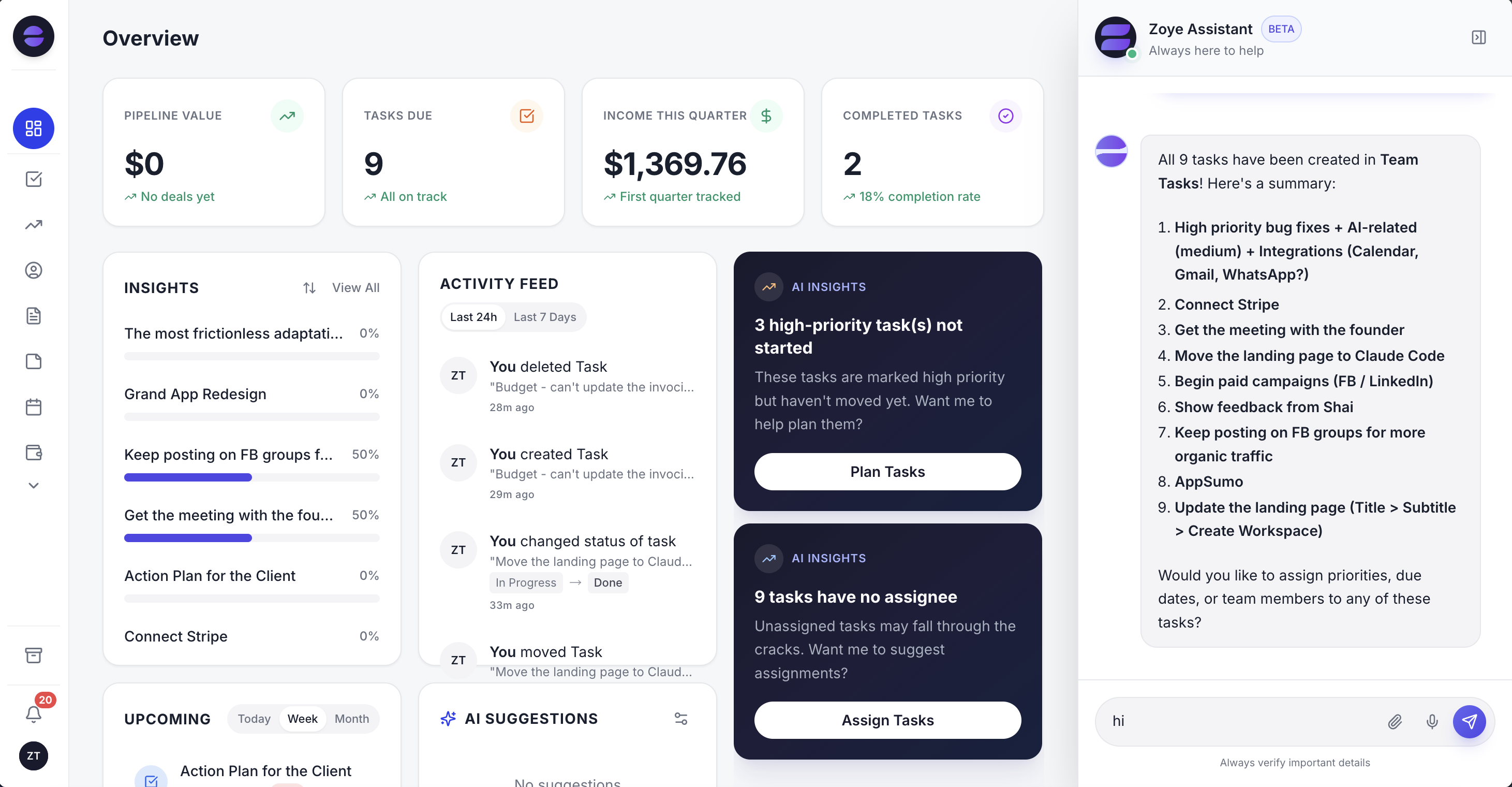
The overview replaces the Lists tab summary: open pipeline, overdue follow-ups and recent activity, updated as work happens instead of on Monday morning.
Rules that used to be a coloured cell can become workflow automations. Describe what should happen ("when a deal sits in Proposal sent for 7 days, create a follow-up task for its owner"), and Zoye builds the rule, shows it to you in plain English, and waits for your approval before anything runs.
Pricing (as of October 2026): Almost Free is $5 a month ($4 billed yearly) for 1 team member with the core tools, 15 AI prompts a month and the Google integrations; it does not include automations. For a team, the ladder runs from Starter (5 members, $29 monthly or $23 a month yearly) through Growth (10 members, $59 or $47) to Scale (30 members, $119 or $95), with Customize priced on request. The pricing page lists what each plan includes. Our roundup of customer management software compares Zoye with other options if you want to look wider first.
Ready to hand off the busywork?
Zoye brings AI-powered CRM, task management, and automation into one workspace.
Get StartedKeep the spreadsheet or move: how to decide
Keep the spreadsheet if one to three people use it, the weekly review ends with zero overdue follow-ups, and most conversations still get logged. Move when two or more of the five signs show up, because at that point the spreadsheet is being paid for with hours and lost deals.
Either way, the work is not wasted: the four tabs, the IDs, the clean stage list and a dated next step on every deal are what make an import painless later. Build the sheet this week, run the review for a month, and let the overdue count tell you when it is time.
If your spreadsheet is already showing the signs, bring a copy to a Zoye demo and see how your own pipeline looks once it is imported.