Quick answer: A WhatsApp link is a web address in the form https://wa.me/NUMBER?text=MESSAGE that opens a chat with your business, with a message already typed. A WhatsApp QR code is the same link printed as a square anyone can scan. You can build the link by hand in two minutes, turn it into a QR code with the Business app, Meta's Platform or any generator, and track each placement by giving it its own pre-filled message.
Key takeaways (October 2026)
- There are four formats: a hand-built
wa.melink, the olderapi.whatsapp.com/sendlink, the Business app's short link, and managed QR codes and short links on the WhatsApp Business Platform. - On the Platform, one business number can have up to 2,000 managed QR codes and short links, each with a pre-filled message of up to 140 characters, per Meta's developer documentation.
- Meta states that analytics are not available for its QR codes and short links, so tracking is your job: one pre-filled message per placement is the method that works everywhere.
- Meta does not charge for messages people send to a business, and since 1 October 2026 each business number gets 1,000 service messages a month at no charge for its replies inside the 24-hour window.
- The QR code standard (ISO/IEC 18004) asks for a blank margin of 4 modules around the code, and its highest error correction level recovers about 30% of a damaged code.
A WhatsApp link is the smallest piece of marketing a business can own. It costs nothing, needs no app, and turns any surface you control into a door to a conversation: a website, a receipt, a van, an email footer. Most businesses already have one somewhere. Few build it well, place it deliberately, or know which placement produces customers.
This guide covers all three. You will learn every link format and when to use it, how to build a link with a pre-filled message by hand (including the URL encoding that trips most people up), how to make a QR code that scans first time from across a room, twelve places to put it, and a tracking method that works without any analytics from Meta. The last part covers what happens after the tap, because a chat nobody records is a lead nobody follows up. If you came here from our WhatsApp lead generation guide, this is the deep dive on its first source.
What a WhatsApp link and QR code actually do
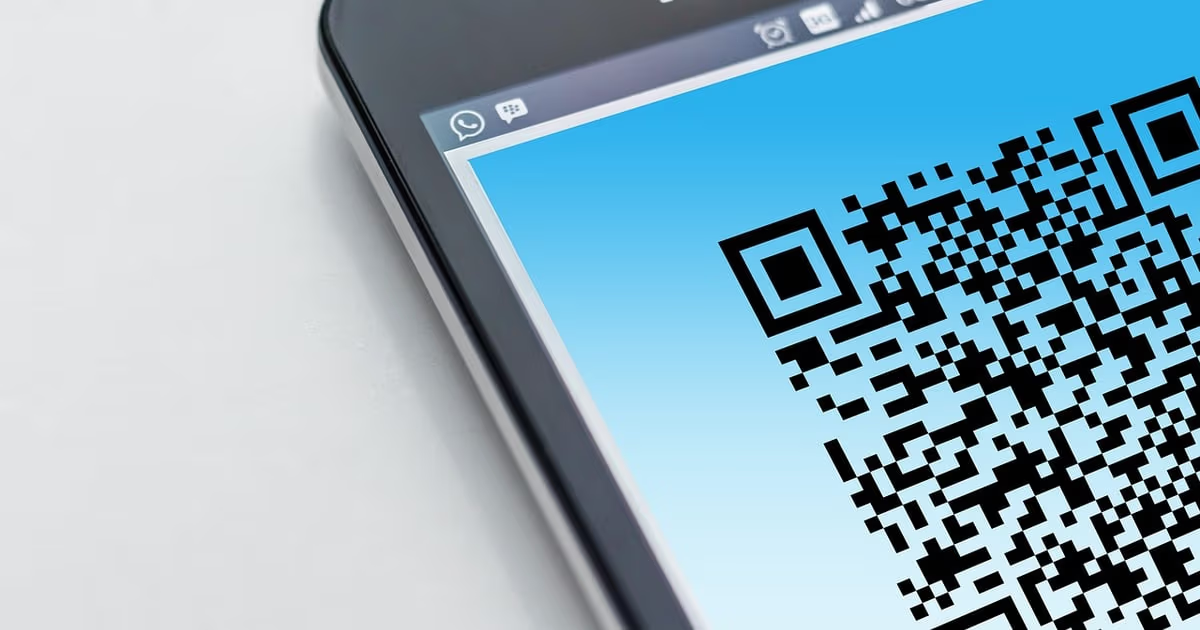
A WhatsApp click-to-chat link opens a chat window with a specific number on the phone or computer of whoever taps it, without them saving the number first. A QR code encodes that same link so a phone camera can open it. Neither sends anything: the person still presses send, which is why the first message always counts as theirs.
That last point shapes everything that follows. Because the customer starts the conversation, you are allowed to answer, and a 24-hour customer service window opens on the WhatsApp Business Platform the moment their message arrives, according to Meta's developer documentation. Inside it you can reply freely, without a pre-approved template. A link is therefore not a broadcast tool. It is an invitation, and it only works if the invitation is specific enough to accept.
It helps to separate two kinds of QR code people confuse:
- A message QR code opens a chat with your number, usually with a pre-filled message. This is the one for marketing.
- A contact QR code, shown under your profile in the WhatsApp apps, adds you as a contact in the scanner's phone. It is useful at a counter for regulars, but it does not start a conversation, so you never learn who scanned it.
Everything in this guide is about the first kind.
The 4 link formats compared
As of October 2026 there are four ways to produce a WhatsApp click-to-chat link: a wa.me link you build yourself, the older api.whatsapp.com/send link, the short link the WhatsApp Business app generates for you, and managed QR codes and short links on the WhatsApp Business Platform. They differ in who can create them, whether the text can change later, and how long the address is.
| Hand-built wa.me | api.whatsapp.com/send | Business app short link | Platform managed code | |
|---|---|---|---|---|
| Looks like | wa.me/NUMBER?text=MESSAGE | api.whatsapp.com/send?phone=NUMBER&text=MESSAGE | wa.me/message/ plus a random code | wa.me/message/ plus a random code |
| Who can make it | Anyone, no account needed | Anyone, no account needed | The number's owner, in the app | The number's owner, through software or Business Manager |
| Pre-filled message | Yes, in the address | Yes, in the address | Yes, an optional default message | Yes, up to 140 characters |
| Change the text after printing | No, the text is in the code | No | The default message can be edited in the app | Yes, edit or delete it at any time |
| How many | Unlimited | Unlimited | One per number | Up to 2,000 per number |
| Analytics from WhatsApp | None | None | None | None, per Meta's documentation |
| QR density | Grows with the message length | Longest address, densest code | Short and fixed | Short and fixed, PNG or SVG |
Three practical conclusions follow from that table. First, use wa.me rather than api.whatsapp.com for anything you build by hand: it does the same job with a shorter address. Second, if you print a lot of codes with long messages, a short link keeps the QR code simple because the message is stored on WhatsApp's side, not inside the square. Third, nobody in this table gives you click or scan counts, which is why the tracking section later matters.
A note on the Business app: the menu that holds the short link and QR code is usually under the business tools in settings, but its exact name and position have moved between app versions. Look for "short link" in settings if you do not see it.
Want to see it in action?
See Zoye catch a new lead, answer on WhatsApp and set up the follow-up, all from one message.
See How It WorksBuild your WhatsApp link by hand: 6 steps, no tool needed
You can build a working WhatsApp link with a pre-filled message in about two minutes using only a notes app and your phone. Write your number in international format as digits only, add it after https://wa.me/, write a short opening message, encode the special characters, join the two with ?text=, and test it on a phone before you share it anywhere.
Step 1: write your number in international format. Start from the number as you would write it with a plus sign for someone abroad. For a placeholder number written as +XX 0 12 345 6789, where XX stands for your country code:
- Remove the plus sign.
- Remove the domestic trunk prefix, the extra digit (often a 0) you dial only for calls inside your own country. Drop it only if it disappears when the number is written with a plus sign; in a few numbering plans the leading zero is part of the international number and must stay.
- Remove every space, dash, dot and bracket.
The result is XX123456789: country code first, then the rest, digits only.
Step 2: start the address. Type https://wa.me/ and paste the digits straight after it: https://wa.me/XX123456789. This link already works. It opens an empty chat with your number.
Step 3: write the opening message. Write it as the customer, in the first person, under 140 characters so it matches Meta's own limit for managed codes and keeps your QR code light. Name what they want and where they came from: "Hi, I scanned the receipt code. Order #1042: delivery & returns?"
Step 4: encode it. Replace each space and special character with its percent code, using the table in the next section. Letters, numbers, hyphens, full stops and underscores stay as they are. Our example becomes:
Hi%2C%20I%20scanned%20the%20receipt%20code.%20Order%20%231042%3A%20delivery%20%26%20returns%3F
Step 5: join the two parts. Add ?text= to the end of the address from step 2, then the encoded message:
https://wa.me/XX123456789?text=Hi%2C%20I%20scanned%20the%20receipt%20code.%20Order%20%231042%3A%20delivery%20%26%20returns%3F
Step 6: test it on two phones. Send the link to yourself, tap it on an Android phone and an iPhone if you can, and check three things: the chat opens with the right business name, the message reads exactly as you wrote it, and nothing after a special character is missing. If the text stops early, a # or & was left unencoded.
Keep the finished link in one note with a label ("receipt, October 2026"). You will build several, and the label is how you will know which is which.
URL encoding the pre-filled message, explained
URL encoding replaces characters that have a special meaning in a web address with a percent sign and two hexadecimal digits, following the internet standard for addresses (RFC 3986). It matters for WhatsApp links because a raw &, # or ? in your message cuts the text short or breaks the link without any error message.
Here is why each troublemaker breaks things. A space is not allowed in an address at all. An & tells the browser a new parameter is starting, so everything after it is thrown away. A # marks the start of a page anchor, so the rest of your message never reaches WhatsApp. A + is read as a space by some systems, so a literal plus sign needs its own code. And a % that is not part of a code confuses the decoder.
| Character | Encoded as | What goes wrong if you leave it |
|---|---|---|
| Space | %20 | Link breaks or text stops |
| Comma | %2C | Usually works, safer encoded |
| Ampersand (&) | %26 | Everything after it is lost |
| Hash (#) | %23 | Everything after it is lost |
| Question mark (?) | %3F | Can be misread as a new query |
| Colon (:) | %3A | Usually works, safer encoded |
| Plus sign (+) | %2B | May turn into a space |
| Equals sign (=) | %3D | Can split the parameter |
| Percent sign (%) | %25 | Breaks the next characters |
| New line | %0A | Cannot be typed in an address |
| Accented letter, such as é | %C3%A9 | Encoded as its UTF-8 bytes |
| Emoji, such as 👋 | %F0%9F%91%8B | Encoded as its UTF-8 bytes |
You do not need to memorise the table. Any spreadsheet can do the work: in a cell, the ENCODEURL function in Excel and Google Sheets turns plain text into this format, and the browser console's encodeURIComponent function does the same. Either way, test the result on a phone, because the phone is the only judge that counts.
Two habits save trouble later. Keep messages to one or two short lines, since each new line adds %0A and length to the code. And write messages in the language your customers write in: an encoded Hebrew, Arabic or Cyrillic message is longer in the address, but it arrives exactly as typed.
Making the QR code: 3 routes
A WhatsApp QR code can come from the WhatsApp Business app, from Meta's managed codes on the Platform, or from any QR generator fed with your wa.me link. The app is quickest for one code, the Platform suits many codes you may edit later, and a generator gives you full control over size, colour and file format.
Route 1: the WhatsApp Business app. In the app's business tools, the short link section shows a wa.me/message/ link for your number, an option to set a default message, and a button to view the QR code. Share or save the image and you are done. It is one code for your whole business, so it cannot tell placements apart, but it is a sound starting point for a counter sign.
Route 2: managed codes on the WhatsApp Business Platform. For a number registered on the Platform, Meta's developer documentation describes QR codes and short links that you create, edit and delete through software or Business Manager. Each carries a pre-filled message of up to 140 characters, one number can hold up to 2,000 of them, the image comes as PNG or SVG (Meta recommends SVG for print), and a deleted code shows the scanner an expiry message rather than opening a chat. The same page says analytics are not available for them, to protect user privacy.
Route 3: any QR code generator. Paste the link you built in the previous section and download the image. Generators come in two kinds, and the difference matters once a code is on paper:
- Static codes contain your
wa.melink directly. They work for as long as your number is on WhatsApp, cost nothing to keep, and count nothing. - Dynamic codes contain the generator's own short address, which redirects to your link. You can change the destination after printing and the vendor counts scans, but every printed code now depends on that vendor staying in business and your plan staying paid.
For anything printed in volume, packaging, vehicle signs, permanent signage, prefer a static code or a redirect on a domain you own (more on that below), so nobody else can switch your codes off.
Printing a WhatsApp QR code that scans first time
A QR code that scans first time is dark on a light background, has a clear blank margin around it, is large enough for the distance it will be read from, and was tested on real phones in the real spot. The QR code standard, ISO/IEC 18004, defines the margin and the error correction levels that make a code survive scuffs and glare.
- Leave the quiet zone. The standard calls for a blank border at least 4 modules wide, a module being one small square of the code. Designers crop it to save space, and that is the most common reason codes fail.
- Pick the error correction level. The standard offers four levels that recover roughly 7%, 15%, 25% and 30% of a damaged code. Use the higher levels for packaging, outdoor signs and anything with a logo in the middle, accepting a slightly denser code.
- Size for distance. A widely used rule of thumb is a code about one tenth as wide as the scanning distance: around 10 cm wide for a poster read from a metre away, larger for a window or a van. It is a rule of thumb, not a standard, so test it.
- Keep the address short. Every character of a pre-filled message adds modules. A short link or a two-line message keeps the code open and easy to scan in low light.
- Contrast, not colour. Dark modules on a light background. Inverted codes and pale brand colours fail on some phone cameras.
- Say what happens. The line next to the code does more than the code itself. "Scan to ask about delivery" works better than a bare square, and it tells people the scan opens WhatsApp, not a download.
- Test where it lives. Print one copy, put it in the actual spot, and scan it with two different phones at the distance a customer stands.
See what Zoye can do for you
CRM, deals, tasks and your Instagram, Facebook and WhatsApp automations in one workspace. Just ask Zoye and it sets any of it up for you.
Explore FeaturesWhere to put your WhatsApp link and QR code: 12 placements
The best placements are the moments when a person already has a question and your number is not in their phone: a product page, a receipt, a parcel, a sign they pass every day. Put a link wherever people read on a screen and a QR code wherever they hold paper or stand still, and give every placement its own message.
| # | Placement | Link or QR | Suggested pre-filled message | Ref |
|---|---|---|---|---|
| 1 | Website header or floating button | Link | Hi, I have a question about your services (ref W1) | W1 |
| 2 | Product or pricing page | Link | Hi, I am looking at the pricing page and have a question (ref W2) | W2 |
| 3 | Contact page | Link and QR | Hi, I would like to get in touch (ref W3) | W3 |
| 4 | Email signature | Link | Hi, I am replying to your email on WhatsApp (ref E1) | E1 |
| 5 | Invoices and quotes | Link and QR | Hi, I have a question about my invoice (ref I1) | I1 |
| 6 | Receipts and order confirmations | QR | Hi, I have a question about my order (ref R1) | R1 |
| 7 | Packaging and inserts | QR | Hi, I just received my order (ref P1) | P1 |
| 8 | Shop window or counter sign | QR | Hi, I saw your sign and would like a price (ref S1) | S1 |
| 9 | Vehicle | QR and a short link in large type | Hi, I saw your van and need a quote (ref V1) | V1 |
| 10 | Business cards and flyers | QR | Hi, I picked up your card (ref C1) | C1 |
| 11 | Social profiles and link-in-bio pages | Link | Hi, I found you on your profile (ref B1) | B1 |
| 12 | Event stand or presentation slide | QR | Hi, I met you at the event (ref X1) | X1 |
A few placement notes the table cannot hold:
- Website. On a phone, a link opens the WhatsApp app straight into the chat. On a computer, the visitor is offered WhatsApp Web or the desktop app, so keep a plain email or form option next to the button for people who do not use WhatsApp on that device.
- Invoices and quotes. A link on the document itself catches questions before they become late payments. Pair it with a message that names the document type so whoever answers knows what to open.
- Packaging. The question after delivery is usually support, not sales. Make sure whoever reads those chats can see the order, or the code creates work instead of saving it.
- Ads. For paid ads, a click-to-WhatsApp ad does better than an ordinary ad with a link: when a person messages you from one on the Android or iOS app and you reply in time, Meta opens a free entry point window of up to 7 days. Our click-to-WhatsApp ads guide covers it. A plain
wa.melink in a regular ad, or a QR code in a print ad, does not open that window.
Tracking which placement converts
You cannot get scan or click counts from WhatsApp itself: Meta states that analytics are not available for its QR codes and short links, and a wa.me link reports nothing. Track placements yourself with a unique pre-filled message per placement, optionally a redirect through your own website for clicks, and a source field on every contact.
Method 1: one message per placement. This is the method that works everywhere, online and on paper. Give each placement its own wording and a short reference such as "ref S1", as in the table above. When a chat arrives, the first message tells you where the person came from. People can edit the text before sending, and a few will, so expect most first messages, not every one, to carry the reference, and treat the rest as unknown rather than guessing.
Method 2: a redirect on your own domain. For links on websites, emails and social profiles, point people to an address on your own site, such as yourdomain.com/wa/email, that forwards to the matching wa.me link. Your web analytics tool counts each visit, and you can add standard campaign tags to the redirect address, the same UTM parameters (utm_source, utm_medium, utm_campaign) you use for email or social campaigns. This counts taps, not sent messages, so read it together with Method 1. A QR code that points to such a redirect also counts scans, without depending on a third-party generator.
Method 3: record the source on the contact. Counting chats is only half of it. The question that matters is which placement produced customers. That means writing the reference on the contact the moment the chat starts, then reading the outcome a month later.
A simple monthly view looks like this. The figures are illustrative, to show the method, not results from any business:
| Placement | Taps or scans (redirect) | Chats started (by ref) | Qualified | Became customers |
|---|---|---|---|---|
| Website button (W1) | 400 | 60 | 25 | 8 |
| Invoice link (I1) | 90 | 30 | 20 | 12 |
| Counter sign (S1) | not counted | 45 | 15 | 6 |
| Packaging insert (P1) | not counted | 25 | 5 | 3 |
In this example the website button starts the most chats, but the invoice link turns 12 of its 30 chats into customers, a far better rate. That is the kind of finding you only get when the source sits on the contact record, and it is often the opposite of what the raw click count suggests.
The capture step: what happens after someone taps
A link or QR code only starts a chat. Whether it becomes a customer depends on what happens next: a reply within minutes, a contact record with the source saved, a few questions that tell you what they need, an owner, and a follow-up date. Meta's rules make the first 24 hours the time to do it.
Meta does not charge for messages customers send to a business. When they write, the 24-hour customer service window opens, and your free-form replies inside it are service messages. Since 1 October 2026, Meta's pricing page says each business phone number gets 1,000 service messages a month at no charge, without rollover, with charges beyond that by the recipient's country. After 24 hours without a reply from the customer, only approved templates can be sent, and those are billed per delivered message. Check Meta's rate card for the figure in your country rather than any number in an article.
The capture step, done well, looks like this:
- Answer fast. Someone who scanned a code is standing in front of your sign or holding your parcel right now. A greeting that confirms you received the message and says when a person will reply keeps them. Our guide to WhatsApp greeting messages has wording for it.
- Save the contact with its source. Name, number, the reference from the first message, and the date.
- Ask two or three questions. What they need, when, and anything that decides price. Write the answers on the record, not in a notebook.
- Give it an owner and a date. One person, one next step, one deadline.
- Ask before you market. A chat that started from a link lets you answer that chat. Sending offers later needs the person's agreement to receive them, so ask in the conversation and record the answer.
On the WhatsApp Business app, all of this is manual on one phone plus a handful of linked devices. Our guide on how to connect WhatsApp to a CRM covers the options when manual stops scaling.
Common mistakes with WhatsApp links and QR codes
Most broken WhatsApp links fail for one of five reasons: a plus sign or trunk zero left in the number, an unencoded character cutting the message, a QR code without its blank margin, a dynamic code that stopped working when a subscription lapsed, or a link nobody tested on a phone.
- The number still has a plus sign, spaces or the domestic zero. The link opens a chat with a number that does not exist, or a stranger's.
- An
&or#in the message. Everything after it disappears and the person sends half a sentence. - One code everywhere. A single QR code on every surface makes every source look the same.
- Messages that sound like a form. "Enquiry ref 77/B" is accurate and unsendable. Write what a real person would type.
- Promising what you cannot keep. "Reply in 5 minutes" next to a code is a promise. If evenings are slow, say so.
- No route for people without WhatsApp. Keep a phone number or email beside the code on anything permanent.
Ready to hand off the busywork?
Zoye brings AI-powered CRM, task management, and automation into one workspace.
Get StartedHow Zoye turns link and QR chats into tracked leads
Zoye is an AI Business Operator: one workspace with thirteen connected tools, CRM, deals, tasks, calendar, invoices, reports and WhatsApp automations among them, plus an assistant that works them for you in the app, on WhatsApp, in Slack and through the Claude connector. For links and QR codes, its job is the capture step described above.
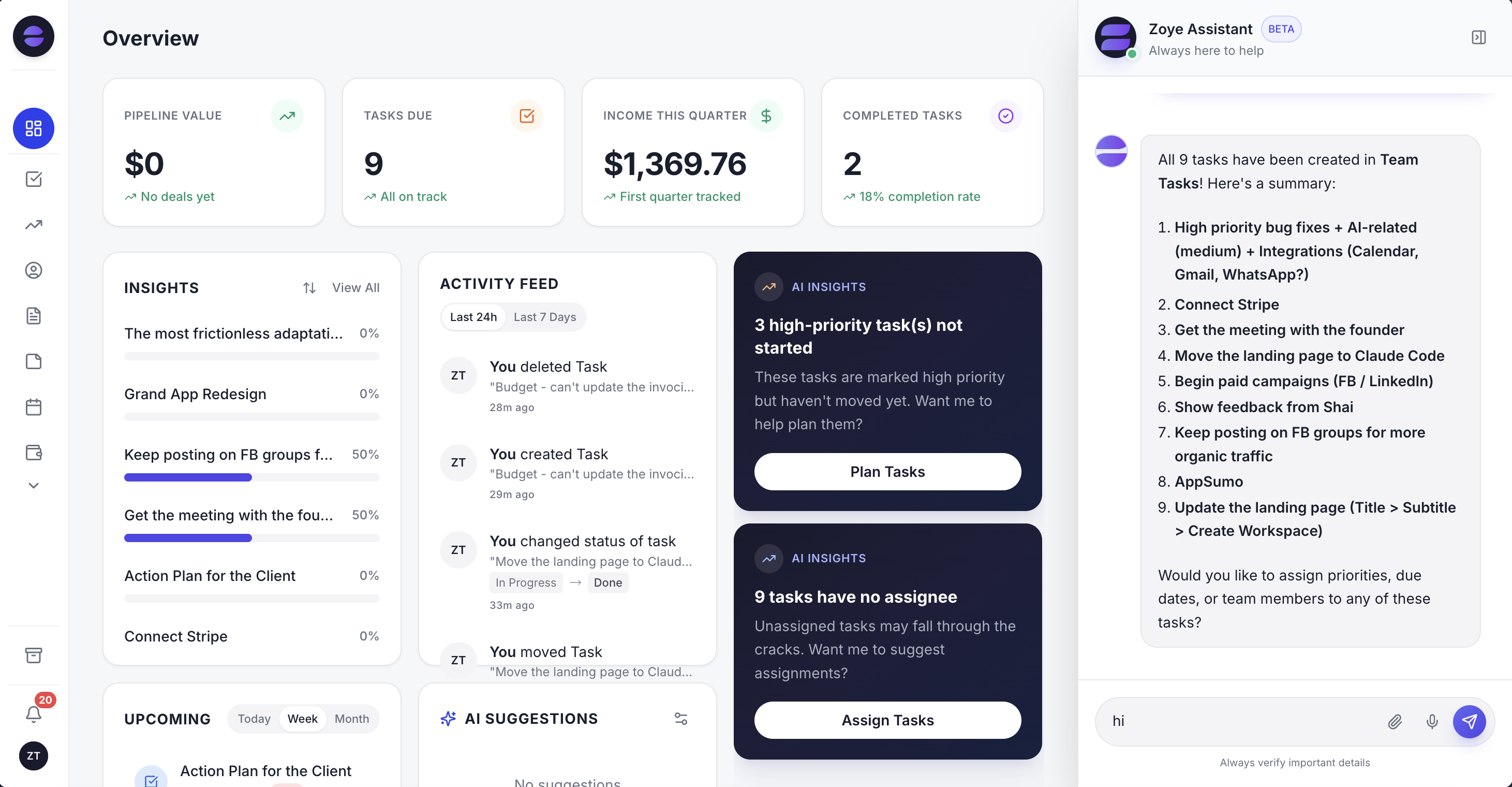
Leads that started from a click-to-chat link or QR code appear on the dashboard with their source, so the best placement is visible at a glance.
Click-to-chat link and QR code. Zoye gives you a click-to-chat link and QR code to place wherever customers find you. Anyone who messages through them becomes a tracked lead, unknown senders are welcomed automatically, and the person's number is linked to their contact record. A website button tap is tracked to the lead it produced, with no form to fill.
The first reply and the questions. The new-lead auto-message sends a welcome within seconds, with separate switches per source and never more than one per person. The lead qualification bot asks your questions in the chat and writes the answers into fields on the contact, so the record is complete before anyone opens it.
One inbox, one record. The chat appears in Chats, which brings Instagram and Facebook messages and comments together with the WhatsApp conversations Zoye has with your leads. Your team assigns chats, leaves notes for each other, uses quick replies, and every conversation is saved on the contact's card with its owner, stage, tasks and next follow-up.
Describe the rule, approve it. Tell the assistant what should happen, such as "when a lead comes from the invoice link, assign it to whoever handles billing and create a task for tomorrow". Zoye builds the rule, shows it to you in plain English, and waits for your approval. All six WhatsApp automations are off by default, confirm consent before sending, offer an opt-out on every outbound message, and log every run.
Honest limits. Zoye runs on the official WhatsApp Business Platform (Cloud API). Connecting your own business WhatsApp number is coming soon, so a wa.me link you build to your own number today still opens chats in your own WhatsApp app, not in Zoye. Zoye does not print your signs, does not count scans of codes it did not issue, does not run ads, and is not a bulk sender. Meta's message charges apply on top, as with any provider.
Pricing. Almost Free is $5 a month or $4 a month billed annually, for 1 team member and 1GB, with the core tools, 15 AI prompts a month and Google integrations, and no automations. Starter is $29 a month ($23 annually) for 10 members and 5GB. Growth is $59 ($47) for 20 members and 10GB. Scale is $119 ($95) for 100 members and 25GB. Customize is quoted. Compare the plans on the pricing page, and see the full capture toolkit on our WhatsApp automations page.
Your next 30 minutes
Build one link by hand, give it a message with a reference, test it on two phones, and put it in the one place where customers already have questions, usually your invoices or your website. Then make one QR code for the counter or the parcel, with its own message, and write down where each one lives.
After a month, sort your contacts by reference. The placement with the most customers, not the most chats, earns the next code. Add placements one at a time, keep the old messages unchanged so the numbers stay comparable, and retire any placement that only produces silence. A link is two minutes of work. What turns it into revenue is knowing which one to build next.