A WhatsApp auto reply is a message your business sends automatically when a customer writes. In the WhatsApp Business app you set it under Tools as a greeting message, an away message or a saved quick reply; on the WhatsApp Business Platform the software connected to your number sends it, and an AI agent can go further and answer the actual question.
Key takeaways (October 2026)
- The WhatsApp Business app has three auto reply tools: greeting message, away message and quick replies. The personal WhatsApp app has none of them.
- The app's greeting fires on a first message or after 14 days of silence, the away message follows one of 3 schedules, and both use 1 fixed text with no name.
- On the Platform, a reply within 24 hours of the customer's last message is a service message; each number gets 1,000 of them a month before Meta charges, since 1 October 2026.
- Since 15 January 2026, Meta allows business-specific AI on the Platform (support, sales, bookings) and bars general-purpose chatbots.
- The useful jump is from "we got your message" to an agent that answers, qualifies, books and hands over to a person with the chat on the customer's record.
Most businesses switch on an away message once, forget it, and never look at what customers actually receive. This guide fixes that in order: the setup on Android and iPhone, the reasons an auto reply silently fails, 15 replies written for moments most templates ignore, what the app simply cannot do, and the point where a fixed text should become an agent. The Meta rules here were checked against Meta's developer documentation and WhatsApp's Help Center in October 2026, and Meta revises them often.
What "auto reply" means on WhatsApp in 2026
On WhatsApp, "auto reply" covers three different things: the fixed greeting and away messages built into the WhatsApp Business app, a reply sent by software connected to the WhatsApp Business Platform, and an AI agent that reads the message and answers it. They differ in who writes the text, what it knows and what it costs.
The app's auto replies. The WhatsApp Business app, the separate green app with the "B" icon, has a Tools area with a greeting message, an away message and quick replies. Greeting and away messages send without you; quick replies are saved texts you insert by typing a slash. All of them are fixed text that you wrote in advance.
A Platform reply. The WhatsApp Business Platform (often called the API) has no greeting or away switch at all. A system connected to your number receives every message and decides what to send back. That reply can use the customer's name, change by where the lead came from, and be logged on a customer record. Meta's developer documentation also describes optional conversational components such as ice breakers (tappable starter questions) and slash commands, but the reply itself is always sent by your software.
An AI agent. An agent is a Platform reply that reads the message instead of matching it to a fixed text. It can answer "do you have Saturday at 10?" with an actual time, not with "we will get back to you". If you want the full picture of what can run after the first reply, our WhatsApp automations page shows the rest of the flow.
Two terms in the same search results mean something else. Smart reply usually refers to the reply suggestions your phone's operating system or keyboard offers inside a notification: it suggests, you tap, nothing is sent automatically. Autoresponder apps are third-party Android apps that read your notifications and answer through them. They sit outside anything WhatsApp supports, need permission to read every notification on your phone, and automated messaging through unofficial tools is the kind of behaviour that gets numbers restricted.
How to set an auto reply in WhatsApp Business (Android and iPhone)
To set an auto reply in WhatsApp Business, open the Tools tab (or Settings, then Business tools, on some versions), choose Away message or Greeting message, switch on sending, write the text, pick a schedule and recipients, and save. Quick replies are created in the same area and inserted in any chat by typing a slash.
Menu names move between app versions, so if a label below looks slightly different on your phone, look for the same words inside Tools or Business tools.
Before you start
- Set business hours first. The away message option "outside of business hours" only appears once hours are saved in your business profile, according to WhatsApp's Help Center.
- Keep the phone online. The app sends away messages from the device, so the phone needs an internet connection for them to go out.
- Write the text before you open the menu. A reply drafted in a notes document, read aloud once, is always better than one typed into a settings field.
Away message on Android
- Open WhatsApp Business and tap the Tools tab. On older versions, tap the three dots, then Business tools.
- Tap Away message and switch on Send away message.
- Tap the message text to edit it, then tap OK.
- Under Schedule, choose Always send, Custom schedule (start and end time), or Outside of business hours.
- Under Recipients, choose everyone, everyone not in your address book, everyone except selected chats, or only selected chats.
- Tap Save.
Away message on iPhone
- Open WhatsApp Business and tap Tools, or Settings, then Business tools, depending on your version.
- Tap Away message and switch on Send away message.
- Tap the text, write your message and tap Save.
- Set the Schedule and Recipients with the same options as on Android, then tap Save again.
Greeting message on both
The greeting message sits next to the away message. Switch on Send greeting message, write the text, choose recipients and save. It is sent when someone writes to you for the first time, or writes again after 14 days with no activity in that chat. Because the two can overlap, a new customer writing at night may receive both, so keep each one short. Example greetings by trade are in our guide to WhatsApp greeting messages.
Quick replies
In the same Tools area, open Quick replies and tap the add button. Write the message, give it a short keyword, and save. In any chat, type / and the list appears; pick the reply, edit it if needed, and send. Quick replies are not automatic: a person still sends them. That is exactly why they are the most useful of the three for real questions, and why the 15 templates below lean on them.
Test it properly
Ask someone who is not in your address book, and who has not messaged you in the last 14 days, to write to your business number. Check what arrives on their screen, on a phone, in a notification preview. If you cannot read the point of your reply in the preview, it is too long.
Why your WhatsApp auto reply is not sending
When a WhatsApp Business auto reply fails, the cause is almost always a setting, not a bug: a schedule tied to business hours that were never saved, a recipient filter that excludes the person, a test from a recently active chat, or a phone that was offline when the message arrived.
Work through this list before reinstalling anything:
- "Outside of business hours" with no hours saved. The schedule exists but has no hours to compare against. Save hours in the business profile, then reopen the away message.
- The recipient filter excludes them. "Everyone not in address book" will never answer your regulars. That may be what you want, but check it was a decision.
- The 14-day rule. A greeting does not fire for someone who chatted with you last week. Test with a fresh number.
- The phone was off or offline. No connection, no away message. Battery savers that restrict background data can have the same effect.
- The number moved to the Platform. A number registered on the WhatsApp Business Platform is run by the connected software, so the app's settings no longer apply in the same way. Check the current coexistence options with your provider.
Want to see it in action?
See Zoye catch a new lead, answer on WhatsApp and set up the follow-up, all from one message.
See How It Works15 WhatsApp auto reply messages, by moment
These 15 replies are written for moments that standard greeting and after-hours messages miss: the busy afternoon, the price question, the missed call, the voice note you cannot play in a meeting. Replies 1 to 4 work as app away messages, 5 to 12 as quick replies, and 13 to 15 need the Platform because they use the customer's record.
Opening greetings and closed-for-the-night messages are already covered in our greeting messages guide, so none of those are repeated here. Where a reply uses {name} or another field, it only works on the Platform, where the value comes from the customer record.
When you step away during the day (away message, custom schedule)
1. The lunch gap. Thanks for your message. The team is on a short break and back at 2pm, when we will answer in the order messages came in. If it helps, send the details now so the reply can be a real answer.
2. The busy afternoon. We are getting more messages than usual right now, so replies are taking about two hours today. Your message is in the queue and will be read by a person. Thank you for waiting.
3. The day off-site. We are out at an event all day and reading messages in the evening. Anything sent today gets a reply before 10am tomorrow. If you need to change a booking, send the new day and time and we will confirm it.
4. The short-staffed week. This week a smaller team is answering messages, so replies may take until the end of the day. We are reading every chat. Thank you for your patience while we catch up.
Quick replies for the questions you answer every day (type / in a chat)
5. /price. Good question. Prices depend on the size of the job, so the fastest way to an exact figure is two details: what you need and roughly when. Send those and we will reply with a price, not a range.
6. /book. Happy to book that. Which two days suit you best, and do you prefer mornings or afternoons? We will send back the nearest free times to choose from.
7. /status. Let me check that for you now. Could you send the order or booking reference, or the name it was made under? I will reply here as soon as I have the update.
8. /voice. Thanks for the voice note. I cannot listen to it right now, so I will play it and reply within the hour. If it is quick to type, feel free to send the main point as text.
9. /missed. Sorry I missed your call. I am free to talk after 4pm today, or we can sort it out here in the chat, whichever is easier for you. What is it about?
10. /photo. To give you an accurate answer, could you send a photo or two of what you have in mind? A wide shot and a close-up usually tell us everything we need.
11. /paid. Thank you, your payment has arrived. You will get the receipt by email shortly. Is there anything else you need from us before the appointment?
12. /sorry. Thank you for telling us, and I am sorry this happened. I want to fix it properly, so I am looking into it now and will come back to you by the end of the day with what we will do.
Platform replies that use the customer's record
13. Reply to an update you sent. Hi {name}, thanks for replying to our update. Would you like us to hold a place for you, or do you have a question first? Either way, a person from the team will answer here today.
14. A gentle follow-up after two quiet days (approved template). Hi {name}, just checking in on your question about {topic}. Would it help if we sent two options to choose from? Reply STOP if you would rather not hear from us.
15. The handover to a person. Thanks {name}. I am passing this to {owner}, who handles {topic} and can see everything you have written so far, so you will not need to repeat yourself. They will reply here shortly.
Reply 14 is sent outside the 24 hour window, so on the Platform it must be an approved template. Reply 15 only keeps its promise if the person taking over really does see the earlier messages, which is where most handovers break.
What the WhatsApp Business app cannot do
The WhatsApp Business app's auto replies are one fixed text per type, sent from one phone. They cannot use a name, route a chat to the right person, follow up later, read the question, or save anything to a customer record. For a solo business that is often enough; for a team, those gaps cost customers.
Here is what is missing, in practical terms:
- No personalisation. Every greeting and away message is the same text for everybody. There is no field for a name, an order or a booking.
- No routing. The app has no assignment. With the main phone plus up to 4 linked devices, everyone sees every chat, and nobody owns any of them.
- No follow-up. If the customer goes quiet after your away message, nothing happens. The app cannot send a second message two days later.
- No understanding. The away message answers "how much is it?" and "I want to cancel" with the same sentence.
- No record. What the customer told you stays in the chat on one phone. It does not become a contact, a lead, a task or a note.
- No reach beyond your saved contacts. Broadcast lists in the app are capped at 256 contacts and only reach people who saved your number.
- The phone is the server. Away messages depend on the device being online.
None of this makes the app bad. It is a fair tool for a person answering their own messages. The question is whether your messages still fit on one person's phone.
The Platform version of an auto reply
On the WhatsApp Business Platform, an auto reply is a message your connected software sends in response to an incoming message. Inside the 24 hour customer service window it can be free-form text; outside it, only an approved template can be sent. It can be personalised, routed and logged, and Meta bills it per delivered message.
The rules that matter for auto replies, as of October 2026, from Meta's developer documentation:
- The 24 hour window. It opens from the customer's last message. Inside it, you can reply with any text, media or interactive message. Outside it, only approved templates.
- Service messages and the monthly allowance. A free-form reply inside the window is a service message. Since 1 October 2026 each business phone number gets 1,000 service messages a month at no charge, with no rollover; service messages beyond that are billed.
- Templates. Marketing, utility and authentication templates are billed per delivery by category and country. Utility templates sent inside an open window are charged again since 1 October 2026. Marketing templates are always charged.
- The entry point window. When a conversation starts from a click-to-WhatsApp ad that the customer opened in the WhatsApp app on Android or iOS (not on desktop or web) and you answer within the window, Meta opens a period of up to 7 days in which marketing, utility, authentication and service messages are not charged.
- Rate changes. Meta changes rates only on the first day of a quarter, and rates vary by country, so use Meta's current rate card instead of a number from any article, including this one.
- Consent and opt-out. You may only message people who gave you their number and permission. An open window is not consent to marketing.
The cost and setup trade-offs between the two products are compared in WhatsApp Business app vs API, and the billing detail is in our guide to WhatsApp Business API pricing.
Auto reply, Platform reply or AI agent: the comparison
The three options differ most in what the reply knows. The app's auto reply knows the time of day. A Platform reply knows the customer's record. An AI agent knows the record, your services and your calendar, and can answer the question that was asked.
| App auto reply | Platform reply (rules) | AI agent on the Platform | |
|---|---|---|---|
| Who sends it | The phone, fixed text | Your software, by rule | Your software, reading the message |
| Uses the customer's name | No | Yes | Yes |
| Answers the actual question | No | Only if it matches a keyword | Yes, from your own data |
| Routes to the right person | No | Yes, by rule | Yes, and explains why |
| Follows up later | No | Yes, with a template outside 24 hours | Yes, with a template outside 24 hours |
| Writes to a customer record | No | Depends on the software | Yes, answers saved to fields |
| Needs the phone online | Yes | No | No |
| Meta charges | None | Per delivered message, 1,000 service messages a month included | Same as Platform reply |
| Best for | One person, low volume | Teams with predictable questions | Teams whose questions vary |
See what Zoye can do for you
CRM, deals, tasks and your Instagram, Facebook and WhatsApp automations in one workspace. Just ask Zoye and it sets any of it up for you.
Explore FeaturesThe step where an auto reply becomes an AI agent
An auto reply becomes an AI agent when the reply is written after reading the message, from your own data, instead of before it arrives. The agent answers the question, asks the next qualifying question, offers real booking times and hands the chat to a person when it should, with everything saved on the customer's record.
Take a message that arrives at 7pm: "Hi, do you have anything free on Saturday morning and how much is it?" The away message says the team is closed. A keyword rule might send the price list. An agent checks the calendar, offers 9:30 or 11:00, gives the price for the service the customer named, and asks which time suits. If the customer picks one, the booking exists before anyone on the team has seen the chat.
What makes an agent safe enough to answer customers:
- It answers from your data, not from the internet. Services, prices, availability and policies come from your own records and documents.
- It knows what it must not answer. Complaints, refunds, anything legal or medical, and anything it is unsure about go to a person.
- It hands over with context. The person taking over sees the whole conversation and what the agent already collected, so the customer never repeats themselves.
- It says it is automated. Telling people they are talking to an assistant, and that a person can take over, is good practice and in some places required.
- Every action is logged. You can see what it sent, what it changed, and why.
Meta's policy, as of October 2026. Since 15 January 2026, Meta's WhatsApp Business Solution Terms bar general-purpose AI chatbots from the Platform, meaning products where the AI assistant itself is what is being offered. AI that serves a business's own customers, for support, bookings, sales or qualification, is allowed. An agent that answers questions about your services sits on the allowed side. The difference between a scripted bot and an agent is explained in AI agent vs chatbot, and the questions-and-fields part in our WhatsApp lead qualification bot guide.
How to roll it out in one week
The safest rollout moves one layer at a time: fix the app's away message, add quick replies for the questions you answer most, then move to the Platform and let an agent take one narrow job before it takes more. Each step is measurable, and each can be undone.
- Day 1: read your last 50 chats. Note the five questions that come up most and how long first replies took.
- Day 2: rewrite the away message and greeting. Say when a person will answer, and ask one question.
- Day 3: add quick replies for those five questions, using replies 5 to 12 above as a starting point.
- Day 4: decide whether the app is still enough. If more than one person answers, if leads arrive from ads or forms, or if you need follow-ups, it is not.
- Day 5: connect the Platform through software that keeps every chat on a customer record.
- Day 6: give the agent one job, such as answering price and availability questions, with everything else handed to a person.
- Day 7: review what it sent. Read every automated reply from the first day before widening its job.
Ready to hand off the busywork?
Zoye brings AI-powered CRM, task management, and automation into one workspace.
Get StartedHow Zoye answers WhatsApp for you
Zoye is an AI Business Operator: one workspace with thirteen connected tools, including CRM and contacts, tasks, deals, calendar, documents and WhatsApp automations, plus an AI assistant that operates them in the app, on WhatsApp, in Slack and through the Claude connector. On WhatsApp, the auto reply is not a setting on a phone; it is part of the customer record.
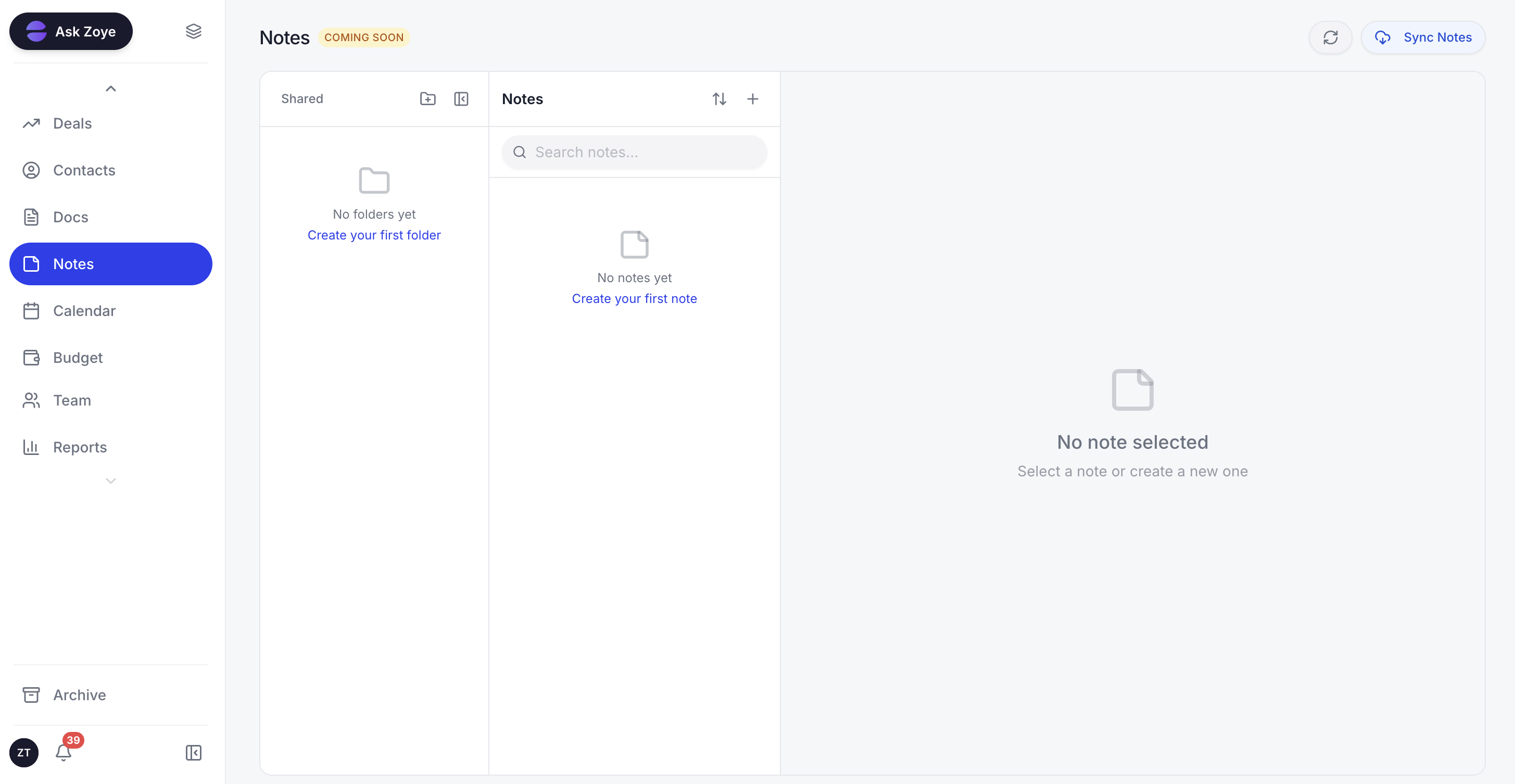
Keep the approved replies, prices and policies in shared documents, so every automated and human answer says the same thing.
Zoye runs on the official WhatsApp Business Platform (Cloud API). With your customers, Zoye works through six WhatsApp automations, all off by default and all confirming before anything is sent: a new-lead auto-message with separate switches per source (ads, forms, website, API, manual) and one message per person, a lead qualification bot that writes answers straight into CRM fields, live smart audiences, scheduled broadcasts with merge fields and pacing, template approval handled for you, and click-to-chat capture.
When a customer writes, Zoye answers from your records, asks the qualifying questions, offers times from one Booking list with reminders sent automatically, can send a payment link in the chat (by Stripe, or Grow in Israel), and hands the conversation to a person with the whole chat on the lead's card. Your team picks up these WhatsApp conversations in Chats, next to Instagram and Facebook messages and comments, with assignment, team notes and quick replies, and owner, stage, tasks and notes visible on every contact. Connecting your own business number is coming soon.
Compliance is built in: Zoye asks you to confirm consent for each automation, uses an approved template automatically for first messages and for anything sent more than 24 hours after the customer's last reply, adds an opt-out to every outbound message, honours STOP across the workspace, and never sends the same person two messages for the same thing. If Meta rejects a message or a permission lapses, you are told the reason instead of seeing a false confirmation.
To change how it answers, describe what should happen, for example "when someone asks for a price after 6pm, send the price list and offer a call tomorrow", and Zoye builds the rule, shows it to you in plain English, and waits for your approval.
Honest limits: Zoye is not a helpdesk ticketing suite, not a bulk-sending tool and not a WhatsApp reseller, and it does not run your ads; it captures and works the leads they produce.
Pricing: five plans. Almost Free: $5 monthly, or $4 per month paid yearly, one seat, 1GB of storage, the core tools, 15 AI prompts monthly and Google integrations, but no automations. Starter: $29 monthly or $23 yearly, ten seats, 5GB. Growth: $59 or $47, twenty seats, 10GB. Scale: $119 or $95, a hundred seats, 25GB. Customize: quoted per business. Meta's WhatsApp message charges apply on top, as with any provider.
Best for: small teams whose WhatsApp has outgrown one phone and who want every message answered, routed and remembered.
Make the first reply useful
An auto reply should do one of two things: tell the customer exactly when a person will answer, or answer the question. The app does the first well, and that is enough for one person. When customers ask real questions faster than you can type, let the reply come from the record instead of a settings screen.
Set your away message and five quick replies today using the texts above. When you are ready for replies that answer, book and hand over, see pricing for the plan that fits, and how Zoye answers customers on our WhatsApp AI agent page.
Related reading
For more context, see WhatsApp greeting messages, WhatsApp message templates, WhatsApp for customer service, and WhatsApp follow-up sequences.