
Quick answer: To create a WhatsApp chatbot, pick one of three routes: the WhatsApp Business app's built-in tools for a very simple auto reply, a no-code builder on the official WhatsApp Business Platform for button-driven flows, or an AI agent on the Platform that understands free text, answers from your own information and writes what it learns into your CRM. For most small businesses, a first working version takes about 30 minutes once the number is connected.
Key takeaways (October 2026)
- A WhatsApp reply-button message carries at most 3 buttons of up to 20 characters each, and a list message holds up to 10 rows, per Meta's developer documentation. Design your menus around those limits.
- Message templates, which you need for anything sent more than 24 hours after the customer's last message, are reviewed by Meta, and the review can take up to 24 hours.
- New business portfolios start with a messaging limit of 250 unique people per rolling 24 hours outside customer service windows, then scale to 2,000, 10,000, 100,000 and unlimited.
- Since 1 October 2026, each business number gets 1,000 service messages a month at no charge; marketing templates are always billed per delivery.
- Since 15 January 2026, general-purpose AI assistants are barred from the Business Platform, while business-specific AI that serves your own customers is allowed.
Most chatbot guides start at "drag a block onto the canvas". The harder decisions come earlier: which kind of bot you need, which number it runs on, which of Meta's rules apply, and what happens when a customer asks something the bot was never told. Get those right and the build is quick. Get them wrong and you get a bot that loops customers through menus, or a number that stops sending.
This guide is about building, not shopping; for a list of tools with no-cost tiers, see our guide to the free WhatsApp chatbot options. Here we cover the three routes, a 30-minute build, a sample conversation design, the template rules, what gets numbers banned, and the costs. Our WhatsApp automations page shows the business version of every piece.
What a WhatsApp chatbot is, and what it is not
A WhatsApp chatbot is software connected to a business WhatsApp number that answers incoming messages automatically, following rules, a menu or an AI model. It is not a second phone running the app, and it is not a tool for messaging people who never wrote to you. On the official Platform it can reply, ask, branch, save answers and hand over to a person.
The word "chatbot" covers a wide range. At one end sits a fixed decision tree: the customer taps "Opening hours" and gets the same text every time. At the other end sits an AI agent that reads "can I come Thursday after work with my sister?", checks your calendar, offers two times and books the one the customer picks. Between them is a large middle ground of keyword triggers and button menus with a few fields saved along the way.
Knowing which one you need saves weeks. A bot that only has to answer the same five questions works fine as a menu. A bot that has to qualify a lead, find a time and update a record needs more than buttons. Our explainer on AI agents vs chatbots goes deeper on that split. For this guide, it is enough to know the three practical routes and where each stops.
Three ways to create a WhatsApp chatbot, compared
You can create a WhatsApp chatbot in three ways in October 2026: with the WhatsApp Business app's automatic messages, with a no-code builder connected to the WhatsApp Business Platform, or with an AI agent on the Platform. The first takes minutes but cannot hold a conversation; the second handles structured flows; the third handles real questions.
| Business app tools | No-code builder on the Platform | AI agent on the Platform | |
|---|---|---|---|
| What you need | The WhatsApp Business app on one phone | A business number on the Platform, a provider, approved templates | The same as the builder, plus your business information |
| Setup time | About 10 minutes | A few hours for a full flow | About 30 minutes for a first version |
| Branches on answers | No | Yes, by button, list or keyword | Yes, by meaning |
| Understands free text | No | Only exact keywords | Yes |
| Saves answers to a CRM | No | Usually through an integration | Yes, when the agent lives in the CRM |
| Hands over to a person | You are the person | Yes, to an inbox | Yes, with the whole chat on the record |
| Main limit | Auto-messaging and bulk sending are against the Terms of Service | Breaks when customers write in their own words | Needs clear instructions and a handover rule |
There is also a fourth route for developers: call Meta's Cloud API directly, receive incoming messages on a webhook and write the logic in code. That is how you "integrate a chatbot with WhatsApp" when you already have a bot elsewhere. It gives full control, and it also makes you responsible for hosting, security, template management and every Meta policy change. For a small team without an engineer, one of the three routes above is the realistic choice.
Route 1: the WhatsApp Business app's built-in automation
The WhatsApp Business app has a few automatic tools: a greeting message for new or returning contacts, an away message for when you are closed, and quick replies you insert with a shortcut. Together they act like a very small bot. They cannot branch, understand questions, assign chats or save anything.
To set it up, open the Business app, go to Business tools, and switch on the greeting message and the away message. Write the greeting so it tells people what you can help with and when a person will answer. Schedule the away message for your closed hours. Then create quick replies for your five most common answers (prices, hours, directions, booking link, payment details), each with a short shortcut, so you or a colleague can insert them in two taps. Labels help you sort chats by stage, and the catalog lets people browse products without asking.
That is useful, and for a sole trader with a few chats a day it may be enough. It stops being enough in three situations:
- Questions arrive in different words. The app cannot read the message. A greeting goes out whatever the customer wrote, even "I want to cancel".
- You need the answers somewhere. Nothing a customer tells you lands in a record. You copy it by hand or lose it.
- More than one person answers. The app runs on one phone plus a handful of linked devices, everyone sees every chat, and there is no assignment.
Do not try to stretch the app with a "WhatsApp bot" that automates your phone or WhatsApp Web. WhatsApp's Terms of Service, checked in October 2026, prohibit sending "bulk messaging, auto-messaging, auto-dialing, and the like" through the regular apps, and accessing the service "through automated or other means" that are not authorised. The real bot lives on the Platform. Our comparison of the WhatsApp Business app vs API explains what changes when you move.
Route 2: a no-code chatbot builder on the WhatsApp Business Platform
A no-code builder connects to your number through the official WhatsApp Business Platform and lets you design the conversation with blocks: a welcome message, reply buttons or lists, questions, conditions and a handover. It suits structured jobs such as menus, FAQs and simple booking, and it struggles when customers type freely.
Before you open any builder, you need four things in place:
- A business portfolio in Meta Business Manager, ideally verified, because verification is one way to lift your messaging limit.
- A phone number for the Platform. A number registered on the Platform is run through software, not through the regular app on one phone. Moving a number from the app generally does not bring the old chat history; some providers now offer a coexistence option that keeps the Business app working on the same number, so check what your provider supports today.
- A display name that matches your business, which Meta reviews.
- A provider or tool that connects to the Cloud API: a Business Solution Provider or an inbox tool. In Zoye, connecting your own business number is coming soon.
Then the builder work starts. The building blocks are the same everywhere because they come from Meta's message types:
- Reply buttons: up to 3 per message, each label up to 20 characters. Good for yes or no and for three clear choices.
- List messages: up to 10 rows in total, grouped into up to 10 sections. Good for a service menu or a set of time slots.
- Keyword triggers: a word such as "price" or "hours" starts a branch. Fragile, because "how much" and "cost" are not "price" unless you add them.
- Templates: pre-approved messages for anything outside the 24-hour window, such as a reminder the next day.
- Fallback: what happens when nothing matches. This is the block most bots get wrong.
A builder makes sense when the conversation is predictable: a status lookup, a menu of four services, a "book, reschedule or cancel" choice. It struggles with what real customers send: two questions in one message, a sentence instead of a button tap, a voice note, a reply three days later. Each needs its own branch, and the canvas grows until nobody wants to touch it.
Route 3: an AI agent on WhatsApp
An AI agent is a chatbot that understands what the customer means, answers from your own business information, asks follow-up questions in natural language, writes the answers into your records and hands over to a person when it should. It is allowed on the Platform in 2026 as long as it serves your own customers.
The policy point matters. Since 15 January 2026, Meta's WhatsApp Business Solution Terms bar general-purpose AI chatbots, the kind where the AI itself is the product, from the Business Platform. A business-specific agent that handles support, bookings, sales or lead qualification for your own customers is permitted. In practice, an agent that only talks about your services, prices, times and policies is on the right side of that line, and an agent that will write anyone's homework is not.
The agent route changes what "building" means. Instead of drawing every branch, you give the agent three things: what it knows (services, prices, hours, policies, the questions customers really ask), what it may do (answer, ask, offer times, send a payment link, create a task), and when it must stop and call a person. The work moves from wiring blocks to writing clear instructions, which most owners find faster and easier to keep current.
Two cautions. An agent is only as good as the information you give it, so a vague price list produces vague answers. And an agent must never promise what it cannot check. If it cannot see your calendar, it should not confirm a time. Our guide to the WhatsApp lead qualification bot covers which questions to ask and in what order, which applies to agents and builders alike.
Want to see it in action?
See Zoye catch a new lead, answer on WhatsApp and set up the follow-up, all from one message.
See How It WorksThe 30-minute build: step by step
A first working WhatsApp chatbot takes about 30 minutes once your number is on the Platform: 5 minutes to choose one job, 5 to write what the bot knows, 5 to design the conversation, 5 to set templates, 5 to set the handover and fields, and 5 to test. Start narrow and widen it after a week of real chats.
Minutes 0 to 5: pick one job. Look at your last 50 WhatsApp chats and count what people wanted. Usually one request dominates: a price, a booking, a status, a quote. Your first bot does that one job well. "Answer everything" is how bots end up answering nothing.
Minutes 5 to 10: write what the bot knows. One page, plain words. Your services with prices or price ranges, your hours, where you work, how to pay, how long things take, what you do not do. Add the five questions customers ask most, with the answers you would give. If an answer depends on something ("it depends on the size"), write down what it depends on so the bot can ask.
Minutes 10 to 15: design the conversation. Write the welcome, the questions you need answered before a person steps in, and the order. Two to four questions is the sweet spot for a first version. Decide which questions get buttons (fixed choices) and which allow free text (names, descriptions).
Minutes 15 to 20: set your templates. Any message the bot sends more than 24 hours after the customer's last message must be an approved template: a reminder, a follow-up, a "we have a slot free" message. Write them now and submit them, since review can take up to 24 hours. Messages inside the 24-hour window do not need templates.
Minutes 20 to 25: set the handover and the fields. Decide who gets the chat when the bot stops, and what triggers it: the customer asks for a person, the bot cannot answer, the lead qualifies, or the customer is upset. Then map each answer to a field on the contact (service, budget, timing), so the person who picks up reads a record, not a transcript.
Minutes 25 to 30: test like a customer. Use your own phone and send ten messages the bot was not designed for: a voice note, two questions at once, "how much", a typo, "talk to a human", a reply after 25 hours. Fix the worst failure, then switch it on for real customers.
A sample conversation design (illustrative)
Here is an illustrative design for a small appointment-based team whose most common chat is "can I book?". It is a pattern to adapt, not a transcript from a real business. It shows the welcome, two buttons, one list, one free-text question, field writes and the handover.
Customer: Hi, do you have anything this week?
Bot: Hi, thanks for writing to us. I'm the team's automated assistant and I can help you book in about a minute. A person reads every chat too. What would you like to book? [List: Consultation, Standard session, Follow-up visit, Something else]
Customer: taps Standard session
Bot: Great choice. A standard session takes 60 minutes. Is this your first visit with us? [Buttons: Yes, first time / No, I've been before]
Customer: taps Yes, first time
Bot: Welcome. These times are open this week: [List: three slots from the live calendar]
Customer: Thursday doesn't work, anything Friday afternoon?
Bot: Friday at 15:00 or 16:30 are free. Which suits you? [Buttons: 15:00 / 16:30 / Talk to a person]
Customer: taps 16:30
Bot: Booked: standard session, Friday at 16:30. What name should we put on the booking?
Customer: Dana
Bot: Thanks, Dana. You'll get a reminder the day before. Reply STOP at any time to stop messages from us.
Notice the free-text turn in the middle: "Thursday doesn't work, anything Friday afternoon?" A button-only builder would fail here or loop back to the list. An agent reads it and checks Friday. That single moment is the practical difference between the routes.
Behind the conversation, every step writes something:
| Step | Bot asks | Type | Field written | If the customer goes quiet |
|---|---|---|---|---|
| 1 | What would you like to book? | List, 4 rows | Service | Reminder template after 24 hours, once |
| 2 | First visit? | 2 buttons | New or returning | Assume new, continue |
| 3 | Pick a time | List from calendar | Booking time | Hold the slot 30 minutes, then release |
| 4 | Name for the booking | Free text | Contact name | Hand to a person |
| Any | "Talk to a person" or an angry tone | Detected | Owner assigned | Person replies within your stated hours |
If you write message copy with placeholders, keep the customer's real data in the fields: "Hi {first_name}, see you on {booking_date}". The placeholder fills from the record at the moment of sending, so a moved booking sends the right date.
See what Zoye can do for you
CRM, deals, tasks and your Instagram, Facebook and WhatsApp automations in one workspace. Just ask Zoye and it sets any of it up for you.
Explore FeaturesTemplates, the 24-hour window and approval
On the WhatsApp Business Platform, your chatbot can reply freely for 24 hours after the customer's last message. Outside that window it may only send an approved message template. Templates are reviewed by Meta, the review can take up to 24 hours, and each template is categorised as marketing, utility or authentication, which affects what it costs.
For a chatbot, this rule shapes the design more than any builder feature. A conversation that runs straight through, like the sample above, never leaves the window. The moment you add a reminder tomorrow, a follow-up in three days or a "your slot opened up" message next week, you are outside the window and need a template.
A few habits get templates approved faster:
- Match the category to the content. A booking reminder is utility. A discount is marketing, even if you call it an update.
- Keep variables in sentences. "Hi {first_name}, your booking is on {date}" reads as a real message; a template that is nothing but variables does not.
- Say who you are. The business name in the text helps the customer and the reviewer.
- One purpose per template. Mixing a reminder and a promotion in one message is a common reason for a category change or rejection.
Our guide to WhatsApp message templates covers categories and examples in detail.
What gets a WhatsApp chatbot number banned
Numbers get restricted or banned for four reasons: running automation through unofficial APIs or modified apps, messaging people who never opted in, using bought or scraped number lists, and offering no route to a human. Low quality signals, such as blocks and reports, also limit how many people you can reach.
Unofficial APIs and modified clients. "WhatsApp API" tools that run a regular WhatsApp account through a browser session or a modified app are outside Meta's rules. WhatsApp's Terms of Service bar auto-messaging and bulk messaging from the regular apps, and WhatsApp's Help Center warns that accounts using unofficial apps can be temporarily or permanently banned. A banned number takes its customer chats with it.
No opt-in. WhatsApp's Business Messaging Policy, checked in October 2026, requires that you have "received opt-in permission from the recipient" before you message them. A chatbot that answers people who wrote first is fine; a chatbot that starts conversations with a list you uploaded needs opt-in from every person on it, and Meta recommends separate opt-in by message category.
Bought or scraped numbers. A list you did not collect is the fastest way to collect blocks. Blocks and reports lower your quality rating, and quality decides whether your messaging limit can grow.
No way to reach a person. The same policy allows automation inside the 24-hour window but says you "must also have available prompt, clear, and direct escalation paths", such as an in-chat transfer to a human agent. A bot that loops a frustrated customer through the same menu is a policy problem as well as a service problem.
Sending too much, too soon. Per Meta's developer documentation, new business portfolios can start conversations with 250 unique people in a rolling 24 hours outside customer service windows. You can reach 2,000 by verifying your business or by delivering 2,000 messages to unique users within 30 days using high-quality templates; above that, limits rise one level at a time if you use at least half your current limit over 7 days and keep quality high, with increases taking effect within 6 hours. Pacing protects you.
What a WhatsApp chatbot costs in 2026
A WhatsApp chatbot has three costs: the software that runs it, Meta's per-message charges, and the time your team spends on handovers and upkeep. As of October 2026, Meta bills per delivered message by category and recipient country, gives every business number 1,000 service messages a month at no charge, and always charges marketing templates.
The Meta side, as published on Meta's developer pricing pages in October 2026:
| Message type | When the bot sends it | Charged by Meta? |
|---|---|---|
| Service message (free-form reply) | Inside the 24-hour window | First 1,000 per number per month at no charge, then charged; no rollover |
| Utility template | Reminders, confirmations, updates | Charged, including inside an open window since 1 October 2026 |
| Marketing template | Offers, re-engagement, news | Always charged per delivery |
| Authentication template | One-time codes | Charged |
| Any category | Within a free entry point window | No charge for up to 7 days after a conversation that starts from a click-to-WhatsApp ad opened in the WhatsApp app on Android or iOS, answered within the window (desktop and web clicks do not qualify) |
| Messages customers send you | Any time | Never charged |
Rates vary by country and Meta can change them only on the first day of a quarter, so read Meta's current rate card instead of trusting a number in any article. Our guide to WhatsApp Business API pricing explains the categories with worked examples.
On the software side, expect a monthly subscription for the builder, inbox or CRM that runs the bot. Ask any vendor three questions: is there a markup on Meta's rates, is AI usage metered separately, and does the price include the inbox your team needs for handovers.
The third cost is the one people skip. Every handover is a person's time, and every vague answer creates a second message. A bot that hands over a third of its chats with the answers already filled in can cost less in staff time than one that handles nearly all of them badly.
Testing and improving your bot after launch
A chatbot is never finished on launch day. Review it weekly for the first month: read the chats where customers dropped out, the questions it could not answer and the handovers that came too late. Add the missing answers, cut questions that lose people, and widen it to a second job only when the first one works.
Four numbers tell you most of what you need:
- Completion rate: of the people who started the flow, how many reached the end (a booking, a qualified lead, an answer). A sharp drop at one question means that question is in the wrong place or worded badly.
- Handover rate: how often a person had to step in, and why. "Asked for a human" is healthy; "bot did not understand" is a gap to fill.
- Unanswered questions: every message the bot could not handle is a line to add to what it knows.
- Time to a person: when a handover happens, how long the customer waited. A great bot followed by a four-hour silence still feels like a bad experience.
Ready to hand off the busywork?
Zoye brings AI-powered CRM, task management, and automation into one workspace.
Get StartedHow to create a WhatsApp chatbot with Zoye
Zoye is an AI Business Operator: one workspace of thirteen linked tools (contacts, deals, tasks, calendar, invoices, WhatsApp automations and more) with an AI assistant that runs them for you, whether you write to it in the app, on WhatsApp, in Slack or from Claude. On WhatsApp, the bot is not a separate product bolted onto your records. It lives in them.
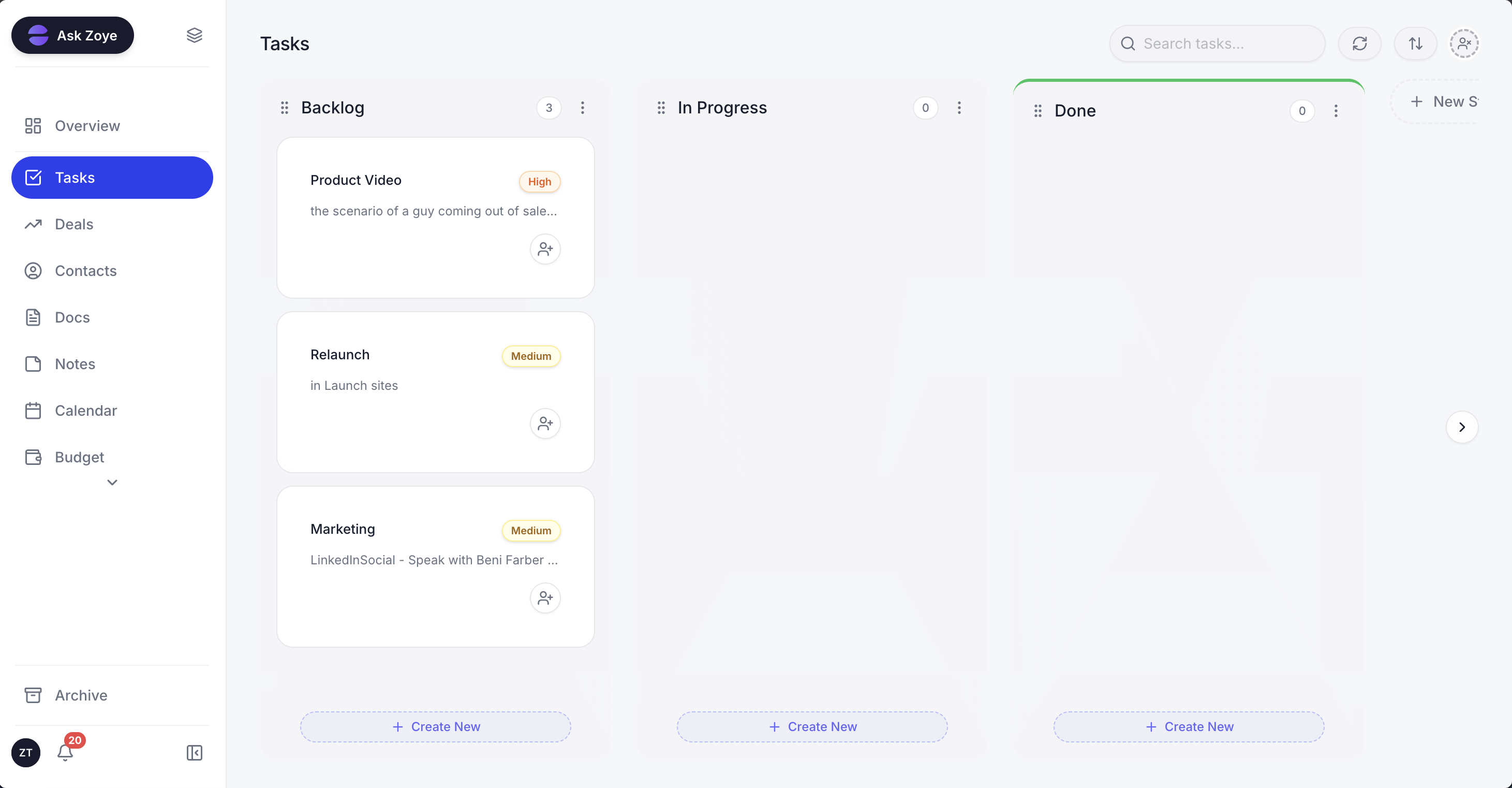
When the WhatsApp bot hands a chat to a person, the follow-up lands on the task board with the whole conversation on the lead's card.
The automations that make the bot. Zoye runs on the official WhatsApp Business Platform (Cloud API) and has six WhatsApp automations, all off by default and all confirming before they send. Two of them are the core of a chatbot: an instant message to every new lead, with per-source switches for ads, forms, website, API and manual entries and one message per person; and a lead qualification bot that asks your questions and writes the answers straight into the contact's fields. Live smart audiences, scheduled broadcasts, click-to-chat capture and template approval complete the set.
The agent side. For customers, the agent answers questions, qualifies, offers times from one Booking list with reminders sent automatically, sends a payment link in the chat (Stripe, or Grow in Israel), and hands over to a person with the whole chat on the lead's card. For you, the same assistant on WhatsApp updates records and answers from live data, including from voice notes. Your team picks up those WhatsApp conversations in Chats, next to Instagram and Facebook messages and comments, with assignment, team notes and quick replies, and owner, stage and tasks on every contact; connecting your own business number is coming soon.
You describe it, Zoye builds it. Tell the assistant what should happen, for example "when someone new writes in, ask which service they want and when, save it on the contact, and give the chat to whoever owns that service". Zoye turns that into a rule, lays it out in plain English and does nothing until you approve. There is a visual builder if you like canvases; nobody makes you use it. Each run leaves a log entry showing the trigger, the change and the message sent.
Meta's rules are handled. First messages and anything more than 24 hours after the customer's last reply use an approved template automatically. Zoye categorises templates, submits them to Meta, tracks their status and resubmits your edits. Each automation asks you to confirm consent, an opt-out rides on every outbound message, a STOP reply counts for the whole workspace, and duplicates are blocked. When Meta refuses a send or a permission lapses, Zoye tells you why instead of reporting success.
Honest limits. Zoye is not a BSP reseller, not a bulk-sender for lists you did not collect, and not a helpdesk ticketing suite. It does not run ads; it captures and works the leads ads produce. Meta's own message charges apply on top of the plan, as with any provider.
Pricing (from the Zoye pricing page): Almost Free costs $5 a month ($4 on annual billing) and covers one person, 1GB of storage, the core tools, 15 AI prompts a month and the Google integrations; automations are not part of it. Starter is $29 ($23 annually) with room for 10 members and 5GB. Growth, at $59 ($47), takes 20 members and 10GB. Scale, at $119 ($95), takes 100 members and 25GB. Customize is priced on request. Full details are on the pricing page.
Best for: small teams whose customers already write on WhatsApp and who want every chat, answer and handover to land on the right contact without copying anything by hand.
Which route should you pick?
Pick the WhatsApp Business app's tools if you answer a few chats a day yourself. Pick a no-code builder if your conversations are truly predictable menus. Pick an AI agent if customers write in their own words and the answers need to end up in your records. Whichever you choose, run it on the official Platform once it sends anything automatically.
A simple test helps. Take your last ten customer messages and ask whether a menu could have answered each one. If eight are "what are your hours", a builder is fine. If most sound like real people with real constraints, the bot needs to understand language and see your calendar.
Start with one job, test it with ten awkward messages, and look at pricing when you are ready to put it in front of customers.